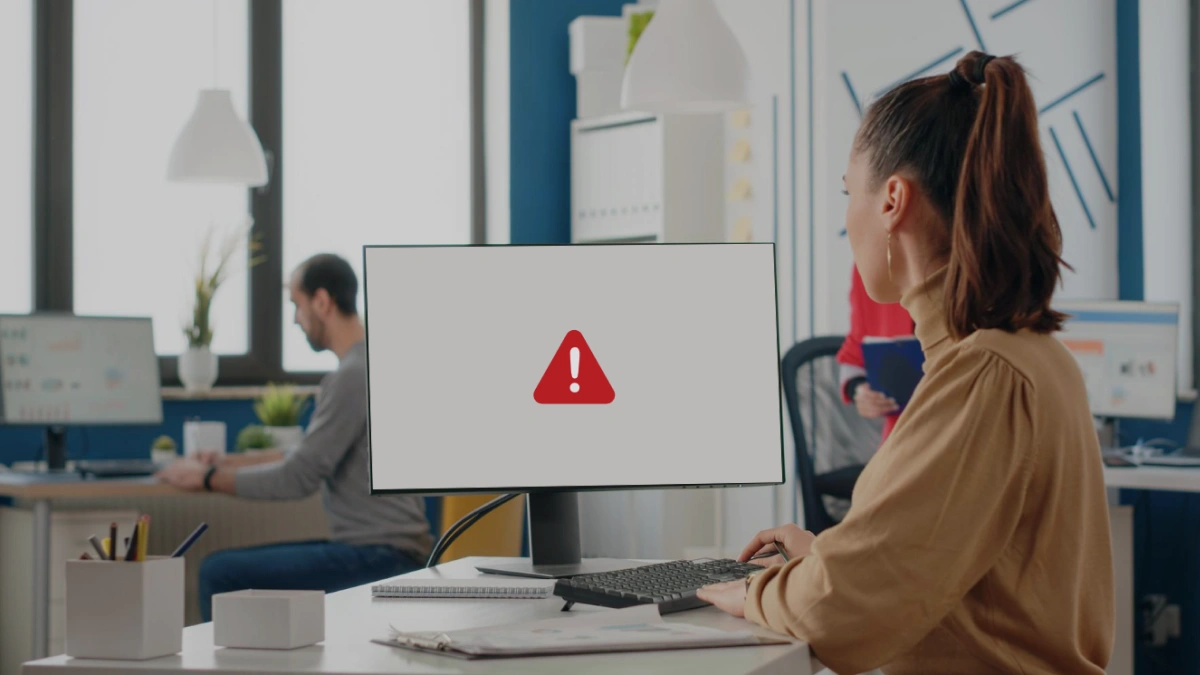
If you are ever having difficulty with your email, such as, you're experiencing delays in sending and receiving mail, you're unable to move emails into specific folders, or you are unable to open your email client or individual emails at all, we suggest that you follow the below steps. These steps will help you narrow down your problem or even completely correct the problem.
Close Your Email Program and Restart
Close down the program that is running your email. Wait for a couple of minutes and then start the program again.
Shut Down Your Computer and Restart
Completely shut down your computer. Wait for a couple of minutes and then restart the program.
Check If Your Internet is Working Properly
Open a brand new internet browser. Go to a brand new website that you have never been to before. If the webpage comes up on your screen as you anticipate, your internet is working fine. If the webpage is delayed or you receive an error message, your internet could be temporarily slow or not working at all.
Try Using Someone Else's Computer Within Your Office
Ask to use a co-workers computer and send a test email to yourself. This is a great way to narrow down if it is just your computer or if the problem is affecting others as well.
Call REM Web Solutions
If you have exhausted all of the above suggestions and are still having difficulty, please call us for help. We will do testing to better understand the issue and to confirm if the problem is being caused by our email server. If it is our email server, we will let you know what we are doing to fix the problem.
Call Your IT Department or IT Company
If after our testing we confirm that our email server is working properly, we will recommend that you contact your IT support for further assistance.
Use Webmail
If after our testing we confirm that our email server is working properly, we suggest that you use webmail to read, send and receive email messages, while your email issues are being addressed by an IT professional. If you need a reminder on how to use webmail, please contact us and we'd be happy to help you.
Posted by: Jillian McBurney at 14:11 PM
May 15, 2012
The Importance of Having a Memorable Logo
Your logo is often the first thing people see when they come across your company, whether online, or in a business directory of some sort, so if you have a poorly designed logo, people won't remember your business or brand.
If you were given a sheet of paper showing you some of the most popular logos, I bet you could name most, if not all of the companies associated with each logo. Why? Because they are designed in such a way that consumers will remember them!
Keep it Simple: This doesn't mean make your logo boring or unappealing, but a complicated logo will make it dificult for your logo to be reproduced, and maintained over the years. It will also be harder to engage your audience. Your logo should be your "elevator pitch" -- you don't have time to give your entire business plan in an elevator pitch so the same concept applies for your logo.
Choose colors wisely: Using too many different colors in your logo design can be distracting so only use your primary business colors. If the logo is the first thing you are desiging for your business, keep in mind that whatever colors you choose for your logo should also be carried through to your business cards,web site, and promotional materials, etc. The colors you choose should reflect what type of business you are in. Colors can illicit emotions, so if you are a children's book writer, for example, try to use colors that are vibrant and exciting. For other businesses such as a law firm, or financial services, conservative colors are best and will work well over a long period of time.
Engage consumers: Your logo, above all, should entertain and engage potential customers. Creating a logo that isn't completely literal makes your audience have to think about the meaning and intension of your logo. Keep in mind that they should be able to determine this in a reasonable amount of time. There can be a downside if you are not careful though. Too much abstraction or being too obscure can create a negative effect. Consumers are now accustomed to intense and exicitng media, so try not to be too demanding or the message you are trying to communicate through your logo will be lost.
Posted by: Sandra Nador at 11:55 AM
May 9, 2012
Pushing Creativity with Web Safe Fonts
It’s true that CSS can do a lot of great things these days. That being said, the same old Arial, Helvetica, and Times typefaces can get boring while trying to create clean typography. Designers and developers try to use the safest choice and stick to what will be available on most computers.
Although there is not a huge selection to choose from, a few great typefaces have become popular on most new computer systems. Below is a small list of fonts that I have started to work in to our projects. They can match the feel of the site better than standard choices and give a fresh look for headings and in content.
Posted by: Sean Sanderson at 16:31 PM
May 7, 2012
“Delivery to your mailbox was refused because it would exceed its quota”
When our clients receive this message, many of them do not know why they have received it or what to do to prevent more messages like this. I’m going to focus my blog on answering those 2 questions.
Why are you getting this message?
It means that there is not enough space left in your mailbox on our server, to accept the new email that was refused.
In some cases, clients will tell me that their Inbox has next to nothing in it. While doing my research I see that, yes, they are correct, their Inbox doesn’t have a lot of emails in it however the emails that are taking up space are in other areas of their mailbox.
Your mailbox encompasses everything from your Inbox, to your Sent Items, to your Deleted Items, to your Drafts and Junk folders, and all of the individual folders that you may create to keep your emails organized. Because of this, for example, the 237 emails that you have in your Deleted Items folder are taking up space.
Another important note to understand is that it isn’t necessarily the number of emails that you have in your mailbox but rather the size of the emails. You may only have 75 emails in your mailbox but if those emails contain large attachments, they will take up more space. And if any of those large emails have been forwarded to another person or deleted, those email will still be taking up space – in your Sent folder and your Deleted Items folder.
What can you do to avoid this?
It depends on how your email is set up.
If you’re using Webmail only:
If you are only using webmail for your email, which we do not recommend, your only choice is to delete emails from your folders; for example, your Inbox, Deleted Items and Sent Items.
If you are only using webmail we recommend that you change your settings to better manage your deleted emails. To do this:
1. Login to Webmail
2. Click on Options
3. Click on Settings
4. Check off “Move deleted messages to ‘Deleted Items’ folder”
5. Check off “Clear deleted items on Log Out”
6. Click on Update
If there are emails and/or attachments that you need to keep, you can save a copy of them on the hard drive of your computer.
If you’re using and email client such as Outlook or Mac Mail – with IMAP settings
If you are using an email client such as Outlook or Mac Mail and your settings are set to IMAP, you can set up local folders and move the emails from the server folders into your local folders. The local folders are stored on the hard drive of your computer and therefore do not take up space on the server.
If you’re using and email client such as Outlook or Mac Mail – with POP settings
If you are using an email client such as Outlook or Mac Mail and your settings are set to POP, verify if it has been set up to “Leave a copy of the messages on server”. If it has, keep it that way. However to make sure that messages do not stay on the server forever, we recommend that you check off the box “Remove from server after X days.” We recommend choosing only 1 or 2 days.
Emailing co-workers and clients, family and friends, is a very common form of communication. Because of this, mailboxes can send and receive many emails a day and that can add up very quickly. I like to suggest cleaning up your mailbox once every 2 weeks. That way you’re not removing emails too quickly but also not leaving it so long that when it does come time to delete, move and/or save your emails, it is not an overwhelming and time consuming process. Receiving an email that says, “Delivery to your mailbox was refused because it would exceed its quota”, can be frustrating and sometimes an inconvenience too, however if you manage your email correctly, you will not receive this message.
Posted by: Jillian McBurney at 17:22 PM
May 2, 2012
The “Green” Office
I imagine we all think we do our best to be “green”. I have always had a slight idealistic attitude that seemed to have tapered off once I finished university and realized the realities of life. That being said, is it really possible to go “paperless” for example?
The other day I was having a conversation with one of my colleagues at REM in regards to this exact subject. Both of us agreed that going completely paperless is not possible, or rather, realistic. Some of us still like to hold a magazine or newspaper in our hands. Also, I find it more difficult to absorb and or enjoy a book or information when reading on screen as opposed to reading it from a physical book or piece of paper.
That being said, I make a point of not printing out emails or webpages. There are times when this is unavoidable but in most instances it is possible. So, what I would like to do is just throw out some simple ideas in order to help your business do what they can to contribute to the goal of being “green”.
I’m not going to get controversial here and tell everyone they should sell their cars and go buy a Prius (I’m a car enthusiast so that would be ludicrous as far as I’m concerned!) but here are a few simple ideas:
Try using LESS Paper – Again, as mentioned above being “paperless” doesn’t to seem completely practical but try and avoid printing out emails. If you have to, customize the settings so you are only printing out the page(s) that are necessary. As for information on websites, some sites offer “printer friendly” versions (quick plug - REM offers this a module) and if they don’t, copy and paste the information into a Word file and print only the information you need. Not only will this save on paper as you won’t be printing the headers and footers and other large graphics but it will also save you some money on ink/toner. Also, try and use recycled paper/materials whenever possible.
Shut the lights off and unplug unnecessary devices when you leave – this may seem obvious but even doing something as simple as putting your printer and other small devices that won’t be needed out of business hours on surge protectors will allow you to shut off several devices at one time. Another option is to buy “smart plugs”. One of our clients (http://safeplug.com/) offers “smart” electrical outlets that will report to you the amount of usage for every device plugged into them as well as offer some fire/shock safety that is also advantageous.
Encourage Online/Video conferencing based meetings – sometimes it is necessary to meet face to face and brainstorm ideas but whenever possible, save on some unnecessary travel by meeting online.
Rely less on heating/air conditioning – purchase a digital thermostat to ensure that the temperature is adjusted accordingly during off hours; Close the blinds in the summer when heat is a concern or open them in the winter; Be open to casual dress for your employees. In the summer allow them to dress more light/comfortably so there is less reliance upon the air conditioning system and the opposite in the winter.
Reduce, Reuse & Recycle – I know, its cliché, but just taking that extra step to ensure every recyclable item is discarded appropriately will, in volume/time, make a huge impact.
Posted by: Joe Labrie at 16:43 PM
April 30, 2012
Web Poll: Hiring a Web Design Company
Before you hire a web design company, what is your main consideration?
Work Experience: Officially 15 years, unofficially 18
Something That Makes Me Smile at Work: Solutions To Challenges
One of the Things I Find Fascinating: The art of marketing
FAVORITE Web site:http://blog.lifehacker.com/ Books: The Ultimate History of Video Games Food: Jiggs Dinner TV Show: Seinfeld Musical Artists: Eric Clapton Time of Day: 7:50 AM Season: Spring Places in the World: Any Traditional Coin Operated Arcade Recreational Activities/Hobbies: Renovating and Video Gaming with my daughter. Sport: Soccer Baseball from Grade 3,4,5 & 6. App: Google Maps
LEAST FAVORITE Food: Chick Peas Activity: Playing Scrabble Time of Day: 7:50 PM Season: Winter Place: Detroit
Best Thing Someone Said to You: “You were right again.”
Life Motto: Think it through.
My Hero: Gregor Read
Most People Don’t Know This About Me: I have a soft chewy center.
Posted by: Jamie McBurney at 11:55 AM
April 24, 2012
Spring Clean Your CMS
Well, I’ve got the Spring cleaning itch. I get it every year; the urge and energy to clean the windows, sweep out the garage and reorganize the closets.
I am a firm believer that companies need to “spring clean” their content in WebWiz@rd. Part of my responsibility here at REM is to help clients if they have questions with WebWiz@rd. Nine times out of ten, in order to address these concerns, I need to login to their CMS and look at what they are doing first hand. As I am helping, I get a good look at the number of web pages, images, documents, newsflashes and newsletters that they have stored in WebWiz@rd. On a regular basis I see “test pages”, images and documents dated up to 11 years ago and newsflashes and newsletters, again, that are years old, still being stored in WebWiz@rd and sometimes used on the clients website.
By keeping old information in WebWiz@rd, you run the risk of publishing invalid or dated content on your website and you can waste an enormous amount of time scrolling and searching through old files to find what you really want.
Here are a few tips to keep WebWiz@rd clean:
·Delete old pages from WebWiz@rd. If you have created a page regarding a particular event, sale, announcement, product or service and it is no longer valid and cannot be updated to reflect new information, delete it. You don’t want to have inaccurate or dated information showing on your website.
·Delete images that you are no longer using. Having old images stored in WebWiz@rd is not a good idea as they take up disk space, and again, you run the risk of using an old image on one of your webpages.
·Delete old Newsletters and Newsflashes. Newsletters and Newsflashes are supposed to be filled with current information. If you have out-of-date Newsletters and Newsflashes available for your customers to read, they may think that you are behind the times and not in touch with your website.
I’m not saying that all “old” information is bad and I’m certainly not suggesting that you login to WebWiz@rd and start deleting everything that looks old! If you do decide to “spring clean” WebWiz@rd, do it thoughtfully and deliberately. Take your time to do it the right way so you don’t regret deleting content that should have been kept.
After you are done cleaning up your CMS, get a cloth and wipe down your desk, keyboard, monitor, printer…
Posted by: Jillian McBurney at 11:43 AM
April 18, 2012
Part 4 – Media Management and Presentation APIs
Media Management and Presentation APIs
To prefix today’s blog topic I thought I would first throw out a refresher in regards to what APIs are and what media management APIs do and what advantage they offer your website. So, with the possibility of being redundant:
API stands for Application Programming Interface which we can easily refer to as “widgets”. These “widgets” allow a website or service to communicate with another website or service. So, they basically give you the power to embed media or information from another website or service into your website.
So, how do APIs relate to managing and presenting media on your site? Well simply, video based sites like YouTube will allow you to embed or display videos on your website that are being hosted on YouTube’s servers. Photo based sites (like Flickr for example) will enable you to call to your galleries (using xml) to display them in a photo viewer or other application you may have on your site.
If a picture can tell a thousand words, then dare I say a video can tell a million words as it is a sequence of images usually synchronized with an audio track. That being said, I am going to focus first on the advantages of YouTube APIs then I will give instruction on how to embed a basic video into your website.
The advantages of using video in general is fairly obvious as it allows you to demonstrate the way your products or services work as well as any advantages they lend, and it allows you to present information from a marketing standpoint. You can literally upload a sales presentation that is available for people across the world to view and engage in. It is such a powerful medium!
Now, how do you get those videos from YouTube onto your site? It is a lot easier than you might think:
Under the video you will see a button titled “Share”, click this button.
Next, click the button titled “Embed”
Select the size you wish the video to be displayed at (I chose 480x360 for this example)
Place your cursor in the textbox/field where the code is displayed (It should begin with <iframe width=…>)
Select all of the code then copy it (Ctrl C). Find the page and location on that page (in your website) where you’d like to add the video, and paste (Ctrl V) the code provided in place, voila!
Posted by: Joe Labrie at 11:16 AM
April 16, 2012
The Web Design Process: Part 2
As promised, this is the second half of "The Web Design Process". Below I will state general steps that I take to ensure a great end result.
1. The Info – I need information from clients to begin any job. I’m not going to waste time guessing what they want. At REM, we have an extensive creative brief that touches on every area guaranteeing I will know the client's business from the inside out. After all, design is all about hitting a target market.
2. Brainstorm – This is where all my information, images, research and available technology gets thrown together and "cooked".
3. Pen to Paper – Having had an artistic background my whole life I am naturally comfortable coming up with ideas and sketches using just a pencil and paper. This is where I experiment with layouts and how the site will flow.
4. Digital Concept – Using graphic software, I take everything and put it together on screen. This part takes by far the longest of all the steps. Once complete, I make it "browser-ready". This gives the client a chance to best view the concept closest to how the final design will look like on-screen.
After the initial concept is done a login gets sent to the client and if needed, the revisions begin. Above is a very rough idea of the steps I take in My Web Design Process.